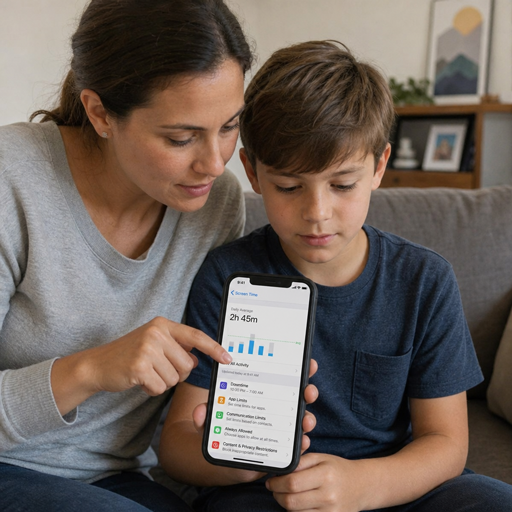
iOS 27 puts family management and everyday focus closer to the center of the iPhone experience. The update includes redesigned Screen Time and parental controls, more flexible schedules, Time Allowances, Ask to Browse, expanded Communication Safety, and several broader iPhone improvements across Apple Intelligence, Photos, Safari, Camera, accessibility, and system performance. For parents, caregivers, and anyone interested in digital wellbeing iOS tools, the headline is simple: iOS 27 screen time controls are designed to be easier to understand and faster to adjust in real life.
What changed in iOS 27 Screen Time controls?
The biggest change is that Screen Time is no longer just a list of limits buried in Settings; in iOS 27, Apple redesigned parental controls so parents can see a child’s usage at a glance and make quick changes with fewer taps. Apple says version 27 of iOS, iPadOS, macOS, and watchOS brings quick actions, more flexible schedules and time limits, and new approval options for a child’s device use.
That matters because family device rules are rarely one-size-fits-all. A school morning, a weekend trip, a sick day, and a long car ride all require different boundaries. The updated screen time settings are built around that reality: parents can pause device use, change schedules, allow access in the moment, and review how a child is spending time without rebuilding the whole system from scratch.
For adults managing their own habits, the same shift is useful. Better visibility makes time management iOS routines easier to maintain because you can notice patterns, set intentional limits, and adjust them before your phone becomes a source of friction.
A more practical approach to family device rules
The strongest part of the iOS 27 features list is not that Apple added more switches. It is that the controls now map more closely to how families actually talk about device time: what can be used, when it can be used, and whether a parent needs to approve something new.
Screen Time Schedules let parents decide which apps are available at different points in the day, such as before school, during school, and after school. Apple also notes that families can create different routines for weekdays and weekends or customize schedules around their own needs.
Time Allowances focus on categories including Games, Social Media, and Entertainment. Instead of requiring parents to start from a blank slate, Apple says these allowances include age-tailored guidance informed by expert research, while still letting parents adjust limits based on what works for the child.
In practice, that could mean allowing learning apps during homework time, limiting entertainment apps on school nights, and giving more flexibility on weekends. The point is not to make the phone “good” or “bad.” It is to make access more intentional.
Useful ways to think about the new controls
- Schedules answer “when.” Use them to separate school hours, downtime, bedtime, and weekend routines.
- Time Allowances answer “how much.” Use them for categories that tend to stretch beyond the original plan, such as games or short-form entertainment.
- Approvals answer “is this appropriate right now?” Use Ask to Browse and app approvals when a child wants to explore something new.
- Quick actions answer “what changed today?” Use them when a normal rule needs a temporary exception, not a permanent rewrite.
How do the new iOS parental controls work with Family Sharing?
The updated iOS parental controls work best when each family member has an Apple Account and the child is included in a Family Sharing group. Apple says parents or guardians can manage a child’s Screen Time from their own iPhone, iPad, or Mac when Family Sharing is set up, and the company recommends managing the child’s Screen Time passcode from the parent or guardian device rather than the child’s device.
There is one important setup detail: to access the updated Screen Time experience across a Family Sharing group, Apple says every device in that group needs to be updated to the current version, including iOS 27, iPadOS 27, macOS 27, watchOS 27, and visionOS 27 where applicable. If every device cannot be updated, families can continue using the previous version of Screen Time or adjust controls directly on the child’s device.
That requirement is worth checking before you promise a child that a new routine starts tonight. Update compatibility, older devices, shared Macs, and watches can all affect how smoothly family sharing iOS settings sync. A quick audit of every device in the group can prevent confusing gaps where one device follows the new rules and another does not.
Safety features go beyond time limits
Screen time is only one piece of digital wellbeing iOS users need. iOS 27 also expands child safety controls around browsing, communication, and content exposure, which makes the update more useful than a simple timer.
Ask to Browse lets a child request access to a new website before viewing it in Safari or another supported browser app. Apple says parents can allow or block specific apps and websites, and Ask to Browse can be used alongside Ask to Buy for purchases and downloads.
Communication controls also become more central. Apple says parents can choose who a child communicates with in Messages, FaceTime, and Phone, including requiring approval before the child connects with someone new. The company also says Communication Safety protections in iOS 27 help intervene before children view or share images and videos containing detected nudity or gore.
These tools are not a substitute for conversations about trust, privacy, and judgment. They are better understood as guardrails. They can slow down risky moments, create space for a parent to review a request, and make it easier to talk about why a certain app, website, or contact is allowed at one age and not another.
Other iOS 27 features worth noticing
Although the new screen time settings are the focus for many families, iOS 27 includes a wider set of changes. Apple describes the update as bringing the next generation of Apple Intelligence and Siri AI, new child safety features, and improvements intended to make iOS more responsive and easier to use.
Some of the most practical additions are spread across everyday apps. Apple says Photos gains Apple Intelligence editing tools, including options to reframe, extend borders, and remove distracting objects with more precision. iCloud Shared Albums add full-resolution sharing and more filtering and reaction options.
Safari also gets smarter organization tools, including automatic topic grouping for tabs and a Notify Me feature that can monitor page changes, such as price changes or restocks. Camera adds the ability to pin frequently used tools above the camera frame, which should help people who regularly adjust flash, exposure, timer, styles, or aspect controls.
Accessibility and system refinements round out the update. Apple lists Voice Control flexible inputs, richer captioning and translation support, Liquid Glass readability refinements, improved search in Spotlight, Photos, and Mail, and faster experiences across app launches, photo loading, and AirDrop transfers.
Quick highlights outside Screen Time
- Apple Intelligence and Siri AI: more capable assistant experiences on supported devices and languages.
- Photos: more editing flexibility and better shared album options.
- Safari: smarter tab organization and website change alerts.
- Camera: pinned tools for faster access while shooting.
- Accessibility: improved Voice Control, captions, and image descriptions.
- System feel: readability refinements, better search, smoother connectivity, and faster common actions.
What should you do before updating your family’s settings?
Before changing limits, start with a simple plan. Decide what you want the phone to support—schoolwork, creativity, communication, independence—and what you want it to reduce, such as late-night scrolling or unsupervised browsing. Then use the iOS 27 screen time controls to reflect that plan rather than relying on random restrictions.
A practical setup process could look like this:
- Update the whole Family Sharing group. Make sure compatible iPhones, iPads, Macs, Watches, and other Apple devices are on the required versions so settings sync correctly.
- Review each child’s current usage. Look for patterns before setting limits. The goal is to understand where time goes, not to punish every high-use category.
- Create schedules around real routines. Start with school, homework, meals, bedtime, and weekends.
- Set Time Allowances for high-friction categories. Games, Social Media, and Entertainment are obvious places to begin because Apple specifically built allowances around those categories.
- Turn approvals into conversations. When a request comes through, explain the decision so your child learns the reasoning behind the rule.
- Revisit the setup regularly. A rule that works in October may not fit winter break, exam week, or a new level of responsibility.
This approach keeps the settings flexible. More importantly, it keeps the parent-child conversation active, which is where long-term digital habits are built.
iOS 27 makes digital wellbeing easier to manage
The best part of iOS 27 is that it treats screen time as a daily rhythm, not a single hard limit. Families get clearer visibility, faster adjustments, and better approval tools, while everyday users get broader improvements across apps, performance, search, accessibility, and Apple Intelligence.
If you use an iPhone to manage a household, the update is worth exploring carefully rather than casually toggling settings on and off. Start with Screen Time Schedules, add Time Allowances where they make sense, use Family Sharing iOS tools to manage changes from a parent device, and treat digital wellbeing iOS features as a framework for better habits—not just stricter rules.