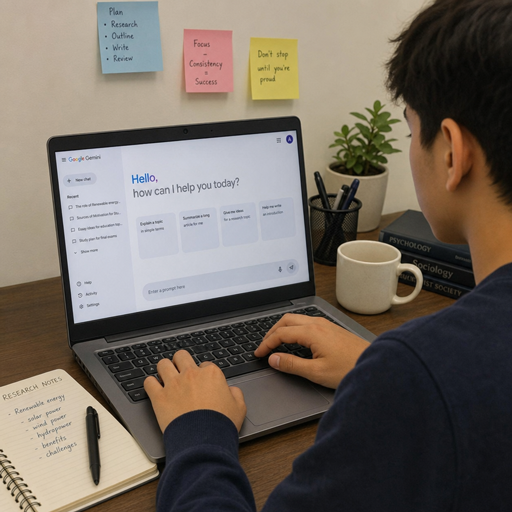
Google Gemini is Google’s AI assistant for everyday productivity, learning, creativity, research, and problem-solving. It can help you draft text, understand complex topics, generate and edit images, work with files, create study materials, and connect with selected Google apps depending on your account, region, age, and plan. This guide walks through the core features, what you can do with the google gemini free experience, how the student offers work, and what to try if you run into Google Gemini error 13.
What can Google Gemini do?
Google Gemini can help with writing, brainstorming, learning, coding, research, file analysis, image generation, and conversational assistance through text, voice, and visual inputs. Google describes Gemini as an interface to a multimodal large language model, meaning it can work across formats such as text, images, audio, and more rather than behaving like a simple search box or single-purpose chatbot. (gemini.google)
That flexibility is the main reason people use Gemini in different ways. A student might ask it to explain a biology concept in plain language, while a marketer might use it to outline a campaign, and a developer might ask for help debugging code. The most useful results usually come when you give Gemini context, constraints, and a clear outcome instead of asking a broad one-line question.
Gemini as a productivity assistant
For everyday work, Gemini is strongest when you treat it as a collaborator that can help you move from a rough idea to a usable draft. You can ask it to summarize long material, compare options, rewrite a message in a different tone, generate an outline, or turn messy notes into a clearer structure. Google’s own overview notes that users turn to Gemini for tasks such as writing emails, debugging code, brainstorming ideas, and learning difficult concepts. (gemini.google)
A practical way to use it is to pair a goal with a format. Instead of “help with my report,” try: “Turn these notes into a 500-word executive summary for a non-technical audience, using a clear and neutral tone.” That kind of prompt gives Gemini a role, a length, an audience, and a quality standard.
Useful productivity prompts include:
- “Summarize this document into five action items and flag anything that needs follow-up.”
- “Rewrite this email so it sounds warm, concise, and professional.”
- “Create three possible outlines for a blog post aimed at beginners.”
- “Review this code and explain what might be causing the error.”
- “Turn this transcript into meeting notes with decisions, open questions, and next steps.”
Creative features for images, ideas, and content
Gemini is also built for creative work, especially when you need to explore ideas quickly. Depending on availability and plan, users may have access to image generation and editing, Canvas, Gems, Deep Research, Gemini Live, and other features inside the Gemini app experience. Google’s current subscription page lists image generation and editing, Deep Research, Gemini Live, Canvas, and Gems as part of the free Gemini app feature set, with paid plans offering expanded access and additional capabilities. (gemini.google)
The best creative workflows are iterative. Ask Gemini for ten directions, choose two, then refine the one that fits your purpose. If you are creating a presentation, for example, Gemini can help you develop the narrative before you worry about visuals. If you are naming a product or planning a content calendar, it can produce options, explain the tradeoffs, and help you decide what feels aligned with your audience.
Personal Intelligence and connected context
Some Gemini experiences can become more personal when users choose to connect Google tools. Google says Personal Intelligence can pull context from tools such as Gmail, Google Photos, YouTube, and Search with user permission, and that these connections remain opt-in and adjustable in settings. (blog.google)
That matters because context often determines whether an AI answer is generic or useful. A connected assistant can reduce the amount of background you need to repeat, but it also means you should understand your settings. Review what is connected, keep sensitive material in mind, and adjust access if your needs change.
Is Google Gemini free?
Yes, there is a google gemini free option, and Google lists it at $0 per month with a Google Account in the United States. The free plan is intended for everyday help at work, school, or home, and Google’s subscription page lists access to Gemini 3.6 Flash, varying access to 3.1 Pro, image generation and editing, Deep Research, Gemini Live, Canvas, Gems, and 15 GB of cloud storage across Gmail, Drive, and Photos. (gemini.google)
The free experience is a sensible place to start if you want to test Gemini for writing, planning, quick research, or learning support. It may be enough if your use is occasional or lightweight. If you rely on Gemini heavily, work with longer projects, or want higher usage access, then a paid Google AI plan may be worth evaluating.
Google explains that Gemini Apps use compute-based usage limits, and those limits can depend on prompt complexity, model or feature used, and chat length. Limits can refresh over time, and paid plans generally offer expanded access compared with the free tier. (support.google.com)
Google AI Pro and higher-access features
Google AI Pro is the plan many users compare against the free version because it expands Gemini usage and adds benefits across the broader Google ecosystem. As of Google’s current subscription page, Google AI Pro is listed at $19.99 per month in the U.S., offers 4x higher usage access than Free, and includes 5 TB of cloud storage across Gmail, Drive, and Photos. (gemini.google)
The same page says Google AI Pro provides more access to capable models such as 3.1 Pro, plus features such as Deep Research and a 1M token context window. It also includes Gemini in Gmail, Docs, and more for eligible users, though feature availability can depend on age, language, country, platform, and other requirements. (gemini.google)
Consider upgrading only if the added access solves a real problem for you. A casual user may not need higher limits. A student, researcher, creator, or professional who uses Gemini daily may benefit from a plan that supports longer sessions, more advanced workflows, and deeper integration with Google apps.
Student features and the Google Gemini student offer
The google gemini student experience focuses on learning support rather than simply generating answers. Google has highlighted study tools such as a student hub, study notebooks, flashcards, practice quizzes, custom study plans, and learning workflows that use uploaded class materials. (blog.google)
For eligible college students in the U.S., Google announced one year of Google AI Pro at no cost, with the offer including 4x higher usage limits in Gemini, access to Gemini Spark, Gemini in Google apps such as Gmail and Google Docs, 5 TB of storage, and other benefits. Google also states that eligible students outside the U.S. can receive one year of Google AI Plus in supported markets, with terms, regional eligibility, and payment requirements applying. (blog.google)
If you are searching for the google gemini student offer, check the official offer page and read the terms before signing up. Google’s August 19, 2026 announcement says eligible U.S. students must redeem by December 31, 2026, and that a valid payment method is required at sign-up, with billing beginning after the trial unless cancelled earlier. (blog.google)
How students can use Gemini well
Gemini is most helpful for students when it supports learning instead of replacing it. Ask it to explain why an answer works, generate practice questions, identify weak spots, or turn lecture notes into a study plan. Google has also described student-focused features such as no-cost SAT and JEE Main practice tests, custom quizzes, writing support in Canvas, and career preparation prompts for resumes, cover letters, and mock interviews. (blog.google)
Try this study workflow:
- Upload or paste your notes, syllabus, or study guide if the feature is available to you.
- Ask Gemini to create a topic-by-topic study plan based on your exam date.
- Request a short quiz for each topic rather than one huge quiz.
- Review every missed answer and ask for a step-by-step explanation.
- Ask Gemini to create a second quiz focused only on your weak areas.
The phrase google gemini pro student is often used by people looking for the student version of Google AI Pro. The key point is that offers change, and eligibility matters. Always confirm whether you qualify, what plan is included, when the trial ends, and what happens after the promotional period.
Gemini for research and deeper learning
Gemini can help you explore a topic faster, but it should not be treated as a final authority. Google’s own overview is clear that Gemini, like other LLM-based tools, can produce inaccurate or misleading information, especially on complex factual topics. (gemini.google)
That does not make it useless. It means you should use it thoughtfully. Gemini is valuable for mapping a subject, generating questions, simplifying dense material, and helping you understand what to verify next. For anything important—medical, legal, financial, academic, or professional—use Gemini as a starting point and check primary or trusted sources before acting.
A reliable research workflow looks like this:
- Ask Gemini for a plain-language overview of the topic.
- Request key terms, competing viewpoints, and open questions.
- Ask what evidence would confirm or challenge each claim.
- Verify important facts against authoritative sources.
- Use Gemini to organize your findings into a clear outline.
What does Google Gemini error 13 mean?
Google Gemini error 13, also searched as google gemini error code 13, is commonly reported by users as a “Something went wrong” problem that can interrupt chats, voice/listen features, or specific account sessions. Google Help Community threads describe it in different contexts, including cases where users tried clearing cache, switching browsers, using incognito mode, changing networks, or starting new chats, but community content is not guaranteed to be verified or current. (support.google.com)
Because error 13 can appear in different situations, avoid assuming there is one universal fix. It may relate to a temporary service issue, a stuck chat, a browser extension, corrupted site data, a network or VPN problem, an app issue, or an account-specific session problem. Start with low-risk troubleshooting before changing major settings.
Try this checklist:
- Refresh Gemini and start a new chat instead of continuing the affected thread.
- Sign out and sign back in to your Google Account.
- Test Gemini in another browser, the mobile app, or an incognito/private window.
- Disable browser extensions temporarily, especially blockers or privacy tools.
- Clear site data for Gemini rather than wiping all browser data immediately.
- Switch networks or turn off VPN/content filtering to test connectivity.
- Update the browser, Google app, or Gemini app.
- If the issue persists, use Gemini’s feedback option or check Google Help Community discussions.
If you use a work, school, or managed account, also consider whether an administrator setting could affect access. If Gemini works on one account but not another, that is useful information to include when reporting the problem.
Best practices for getting better Gemini results
Gemini works best when your request is specific. The tool can infer a lot, but it performs better when you provide the purpose, audience, format, constraints, and examples. Think of prompting as briefing a capable assistant.
Before you send a prompt, ask yourself:
- What outcome do I want: explanation, draft, list, comparison, plan, or critique?
- Who is the audience: beginner, executive, teacher, customer, developer, or recruiter?
- What tone should it use: formal, friendly, concise, persuasive, or technical?
- What should it avoid: jargon, unsupported claims, long paragraphs, or certain topics?
- What source material should it use: notes, files, links, data, or pasted text?
A weak prompt says, “Write about Gemini.” A stronger prompt says, “Write a beginner-friendly overview of Google Gemini for college students, focusing on study planning, writing support, and responsible use. Use short paragraphs and include five practical tips.” The second prompt gives Gemini enough direction to produce something closer to what you actually need.
Privacy, limits, and responsible use
Gemini can be powerful, but responsible use matters. Google says users can review, update, manage, export, and delete Gemini data through available controls, and can manage connections such as Workspace, Maps, and YouTube. Google also notes that Gemini’s approach continues to evolve as the technology and user feedback evolve. (gemini.google)
Use extra care with sensitive personal, academic, client, or business information. If you are using Gemini for school or work, follow your institution’s policies. If you are using it for research, keep track of what came from Gemini and what came from verified sources.
The bottom line
Google Gemini is no longer just a simple AI chat tool. It has grown into a broad assistant for writing, studying, research, creative work, coding help, and connected productivity across Google’s ecosystem. The google gemini free plan is a strong starting point, while Google AI Pro and student offers may make sense for people who need higher access or deeper learning tools.
The smartest way to use Gemini is to stay practical: give clear prompts, verify important facts, watch your privacy settings, and use AI to strengthen your own thinking rather than replace it. Whether you are exploring the google gemini student offer, comparing paid plans, or troubleshooting google gemini error 13, the best results come from understanding both the features and the limits.